AstroEngine is a desktop app for macOS and Windows that works alongside TradingView Desktop. It adds trading tools, a dashboard for your trades, and looks, wallpapers and scripts for your charts.
AstroEngine Access is $20 a month, plus tax where it applies. Cancel anytime.
TradingView DesktopAstroEngine
Up and running in three steps.
Install AstroEngine
Get Access, then download it for macOS or Windows.
Open TradingView Desktop
Open it from AstroEngine, which shows you when it's ready.
Set it up your way
Choose what you want in the AstroEngine window, and it shows on your chart.
Details
Where to install. Install it on the computer you trade on.
If TradingView is already open. AstroEngine may restart it once.
Your setup stays yours. Your charts and your broker connection stay yours, and TradingView still draws every candle.
Who it's for. Futures traders who run prop-firm evaluations and want their desk set up their way.
Tools for running your accounts
Every prop eval you add is one more account to trade by hand. Place a trade once and it copies to your other demo accounts, drag your brackets on the chart, see how close each account is to passing, and hold yourself to your limits.
Place a trade once. Your other demo accounts follow.
Pick a leader, switch on your followers, and each order copies across, even to accounts on another firm login. Demo accounts only. In our recordings, Apex and Lucid evaluations ran on Tradovate's demo server.
Nothing is copied while AstroEngine is closed. Some prop firms ban copiers. Check your firm's rules. That risk is yours.
Details and limits
Placing the same order on every account is slow and easy to get wrong. Pick a leader, switch on your followers, and AstroEngine copies each order to them.
It copies market, limit, stop and bracket orders, one stop and one target per order. Trailing and stop-limit orders go as sent. Nothing is copied while AstroEngine is closed or TradingView is reloading.
It works with Tradovate demo accounts in TradingView. Logins on a live or unknown host never lead or follow. On the demo server, you can confirm an account we can't identify as demo. That choice is yours.
Copier
Copier
The real Copier page with made-up accounts and a made-up order, slowed down so you can see it.
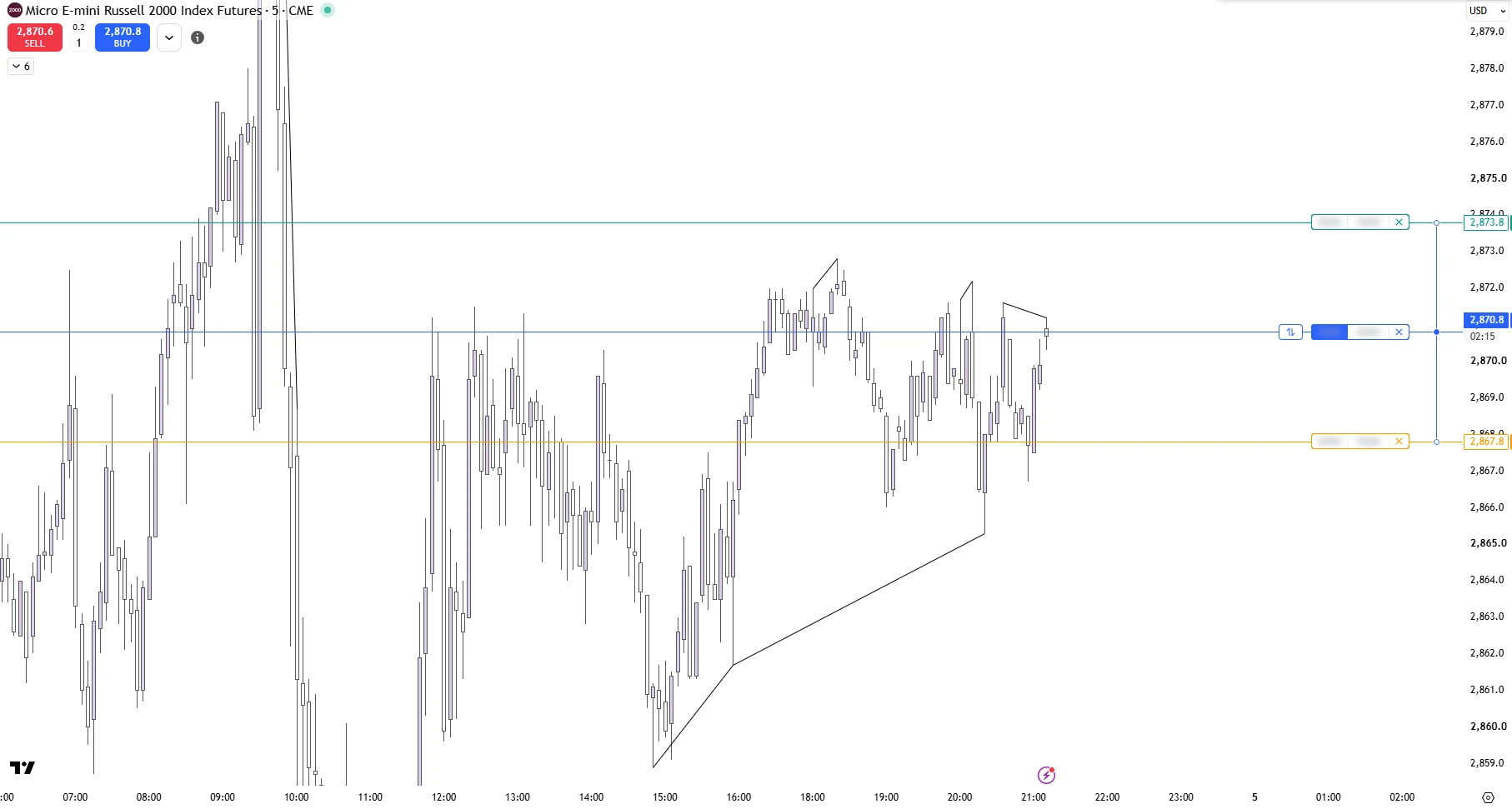
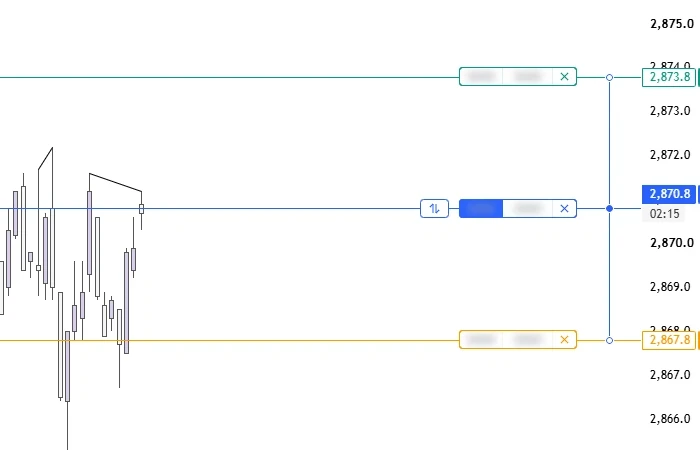
Drag your take profit and stop loss on the chart.
Drag TP and SL on the chart, on Tradovate demo accounts, including NinjaTrader logins on Tradovate's demo server.
AstroEngine links your TP and SL, not the broker. If AstroEngine or TradingView closes, or you pause the copier, one can stay working after the other fills. Brackets stop when AstroEngine locks or quits.
Details and limits
Set TP and SL by dragging them from the position or order line. Turn on Cancel the other exit for all other exits. Canceling those exits never places an order.
TradingView Desktop
A real order on a demo account. Take profit and stop loss are both dragged from the position line, and Streamer hides the size and P&L.
TradingView Desktop
TP+$44025,432.00
Long125,410.00
SL−$32025,394.00
An example: a real chart with a made-up position. Drag a line. Nothing here sends an order.
See how close every account is to passing.
How far each Tradovate account is from passing and from its next payout, on one page.
Tradovate only. It only reads, and never places a payout request. Rules come from the prop-firm guide, so check your firm's dashboard.
Details and limits
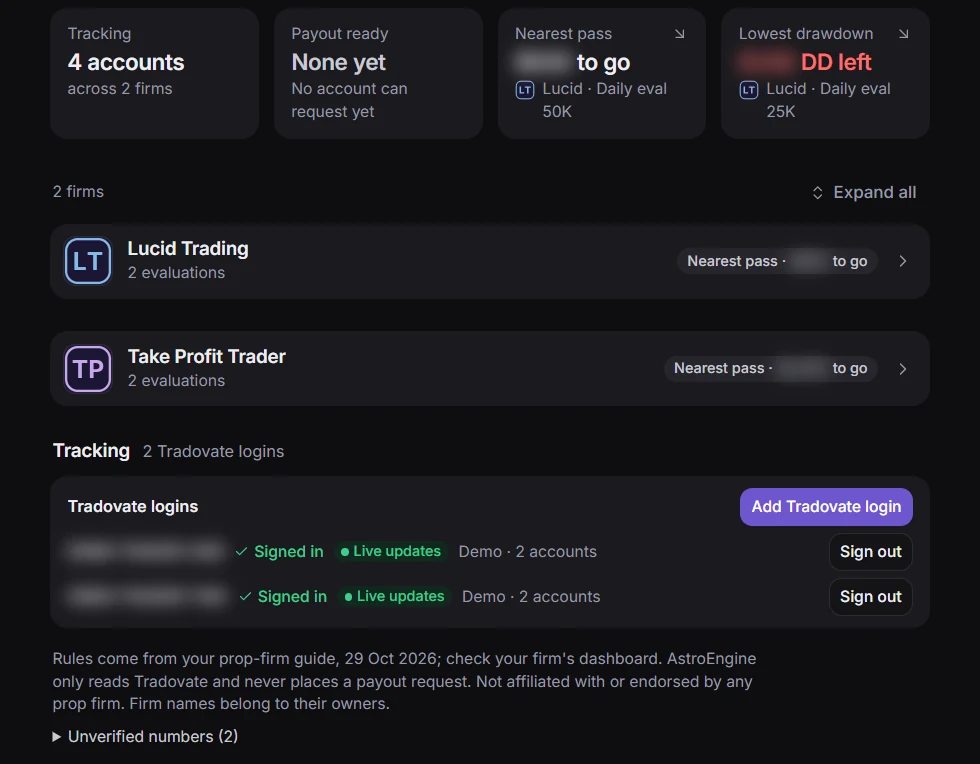
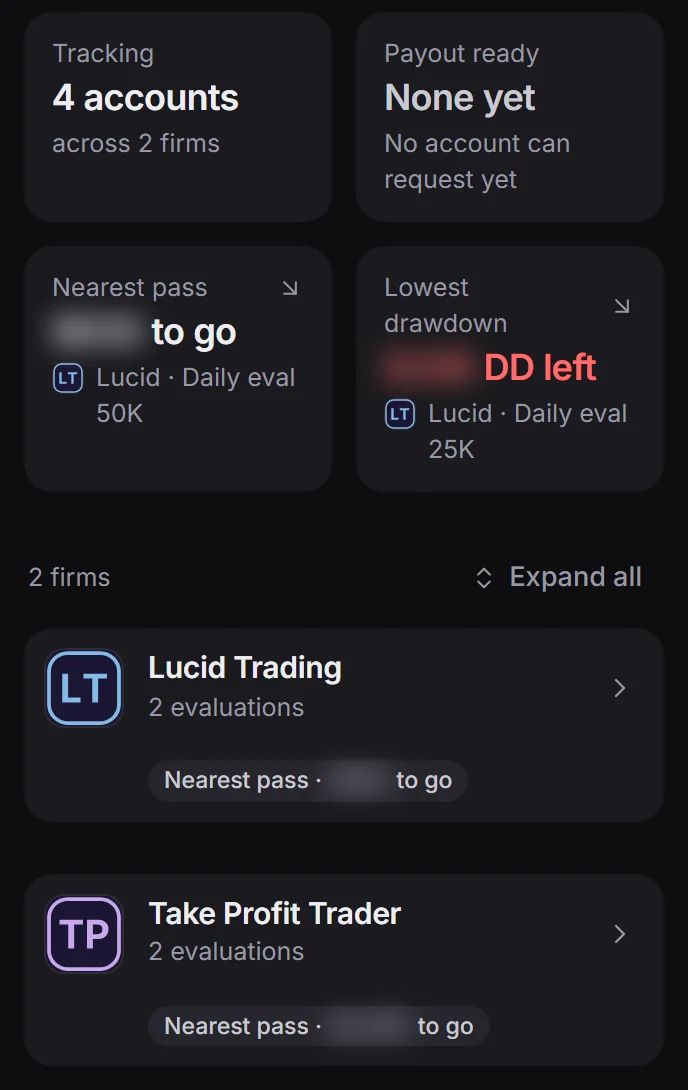
Across several firms and evaluations, it's hard to keep track of where each account stands. The Prop tracker reads your Tradovate accounts and shows how far each one is from passing and from its next payout.
Prop tracker
Prop tracker
Four accounts across two firms. Streamer blurs the amounts.
Prop tracker
Prop tracker
The real Prop tracker page with made-up accounts and numbers.
Share your screen without sharing your account.
Pick what to hide: account names, size, P&L, tables and more.
Every blur on this page is Streamer.
What it hides
Streamer hides what each switch covers: your account name and number, position size, P&L, average price, account tables, notifications and toasts, the copier panel, the prop tracker and the Dashboard. Turn on the ones you need.
Streamer
Copier
OffOn
Streamer off and on, in an example with made-up accounts. Drag to compare.
Set your limits. Hit one and new entries are blocked.
Set your limits on the dashboard, or press Lock me now. A lock runs to its end time: there is no unlock.
A discipline aid, not a broker lock. It works in TradingView Desktop on this computer while AstroEngine is running, and some entries get through. Its blocks are tested on Paper Trading only.
Details and limits
Set a daily loss limit, a profit cap, a trade count, a loss streak, a cooldown after a loss or trading hours on the dashboard, then turn on the trading lock. When a limit is hit, AstroEngine blocks the order ticket, chart Buy and Sell, DOM Buy, Sell and Reverse, and the trade items in the chart menu.
Or use Lock me now: 15, 30 or 60 minutes, or the rest of the day, which ends at 18:00 New York time. There is no unlock. A lock runs to its end time, through a restart. Closing a whole position, flatten and cancel still work. Reducing part of one with the ticket needs a linked Tradovate or NinjaTrader account.
A discipline aid, not a broker lock. It works in TradingView Desktop on this computer while AstroEngine is running, so your phone, other devices and other platforms are not stopped, and orders already working can still fill. The copier still copies any order that gets through. Limits that count trades read closed trades only, can take a second or two after a fill to lock, and need a dashboard account and a Tradovate or NinjaTrader login.
Some entries get through. With a position open, the order ticket stays open only to close what you hold: the other side, no more than its size, same symbol, same account. If AstroEngine can't read the symbol or account, the ticket stays open and the app reports it. Some cases stay open with no report: an entry on another month of a product you hold, an account the app doesn't know whose name is a held account's name plus more digits, and resting orders that add up to more than you hold, which can open a new position. The lock does not cover the DOM price ladder or Reverse in the position menu, and may miss the chart menu's Sell limit and Buy stop. A control it can't identify stays open. Its blocks have been tested on TradingView's Paper Trading, not with real brokers. During a lock, the app lists some of these gaps.
General
General
General
The real Rules section with a made-up lock.
Choose how often your orders are checked.
TradingView normally checks your orders about once a second. You choose how often: 500, 250 or 150 ms.
Fills happen at the broker. This doesn't make them faster or change your prices.
You can get fewer checks than the setting.
Off by default, on demo connections only. Live accounts stay at the normal rate.
Turning it on takes a Disconnect and Connect in TradingView.
It pauses if the broker refuses requests, and stays paused until you switch Order updates and the copier off and on.
The copier's rate-limit pause also turns it off. With the copier on, only the leader's login gets it, and 150 ms may reach the broker's rate limit.
Time between order checks. Shorter means more often.
NormalAbout 1 s
Setting500 ms
Setting250 ms
Setting150 ms
Checking every N ms is what General shows: the rate you are really getting, from your recent order checks.
Normal was measured in two sessions on one machine. The other three are settings you choose, not measured results.
Review your trades in the Dashboard.
While your computer is linked, the app records your closed trades from your broker's fills on Tradovate and NinjaTrader connections. Write down what you saw, tag your setups and mistakes, and see what each trade made or cost you.
You open the Dashboard from the app. Trades on TradingView's Paper Trading are not recorded. CSV import takes Tradovate orders, performance and cash exports, and Rithmic exports.
Details and limits
Journal gives each trade a page: its numbers, entry and exit, notes, tags, mood, confidence and screenshots, with a note for the day beside it.
Trades lists them all, with search and filters, in dollars, percent, R, points or ticks. Reports breaks them down by symbol, time of day, weekday, holding time, tags and mood.
Recording runs while the computer is linked and you are signed in to TradingView as the linked user. To stop it, unlink the computer on the app's General page. The Privacy page says what we keep and who can see it.
Imported trades are marked Imported. Importing a Rithmic file brings its trades into the Dashboard. It does not make the copier work on Rithmic.
Dashboard
Dashboard
Dashboard
The real Dashboard pages with made-up trades. These are not results.
Make it yours
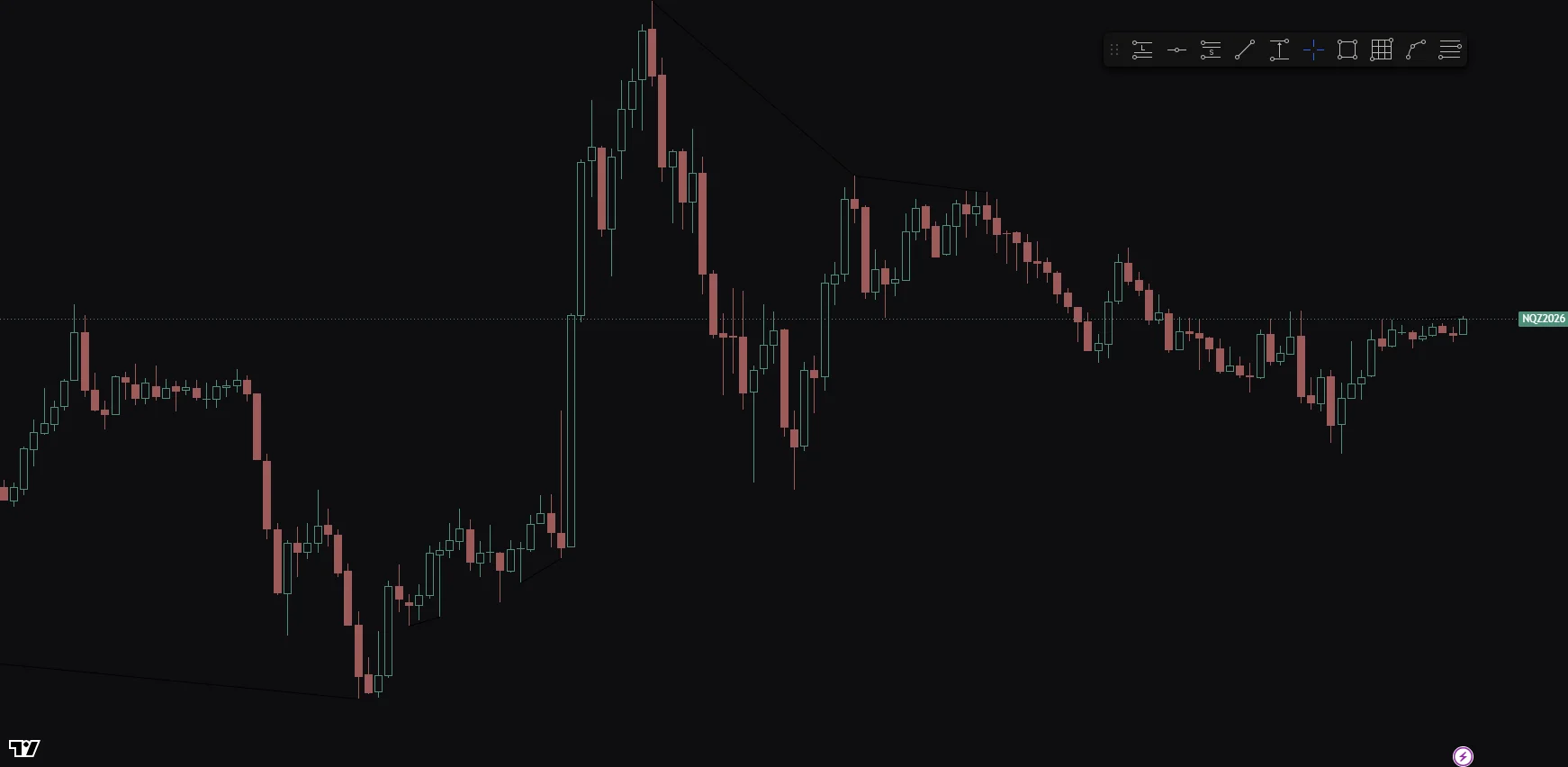
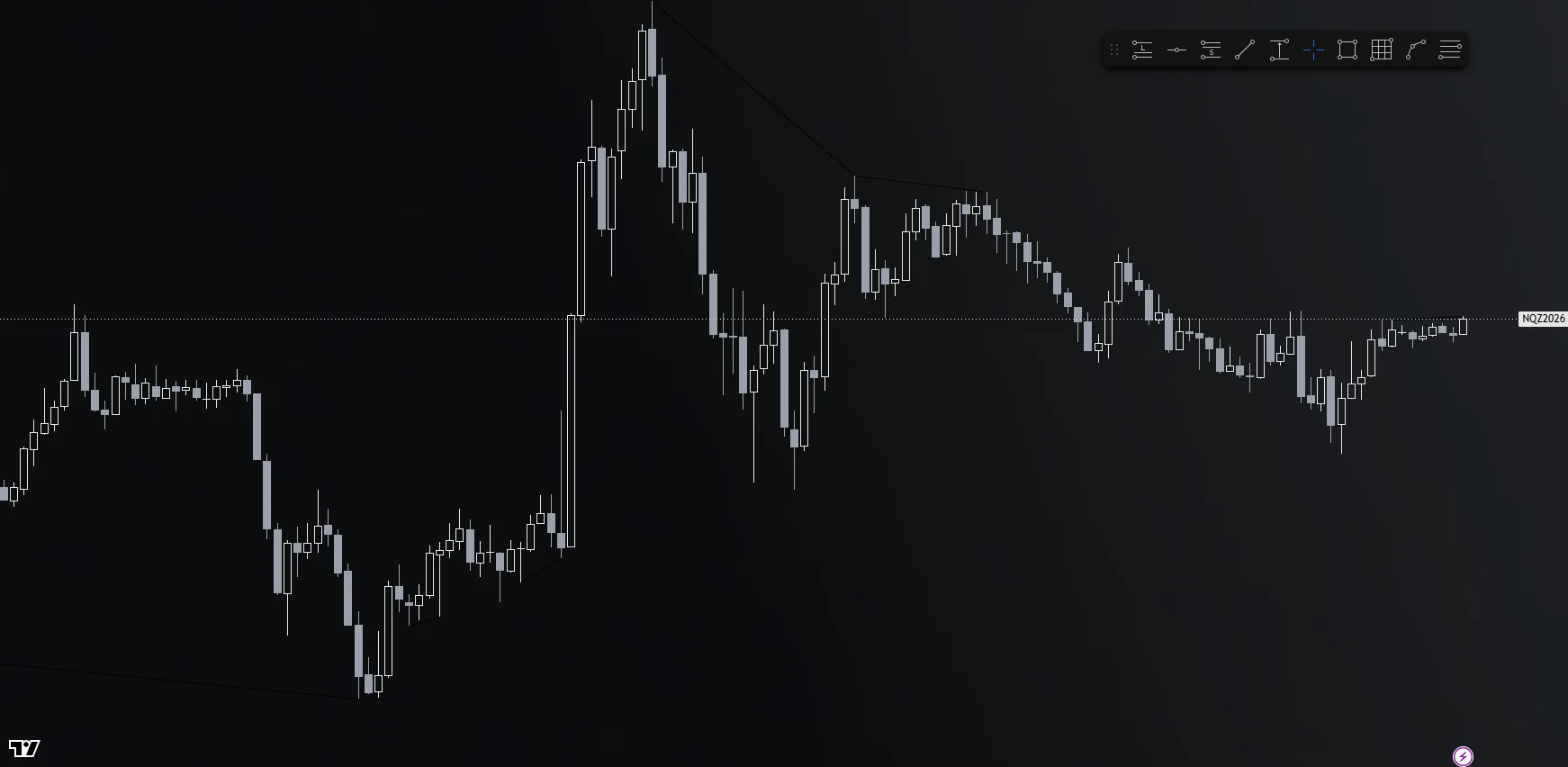
Wallpapers, candle colors and scripts go on your real charts. None of it places orders.
WithoutAstroEngine
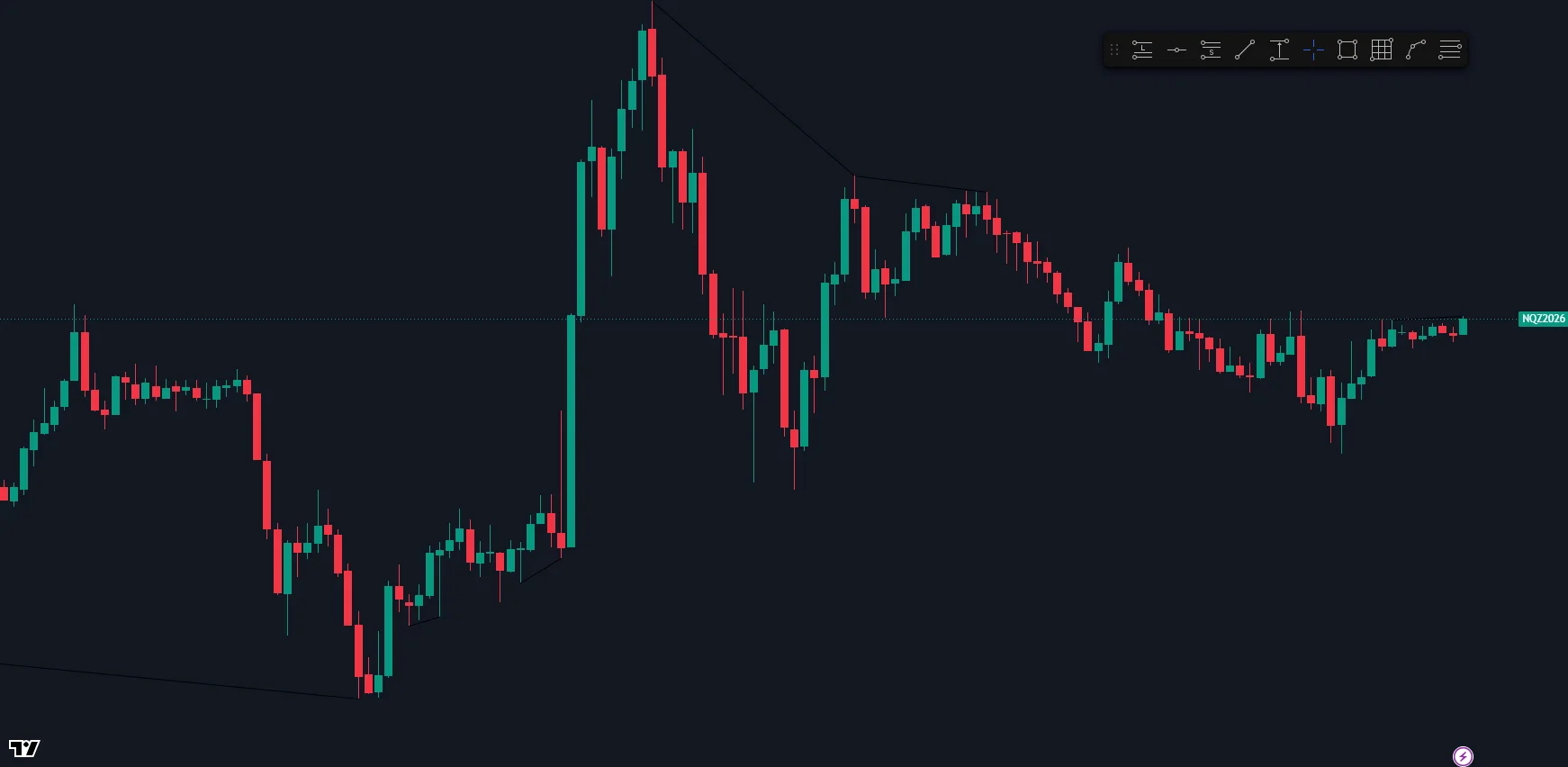
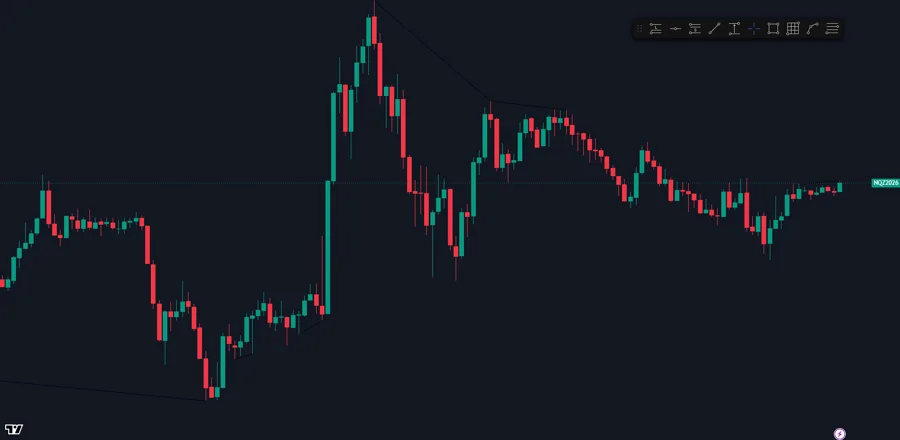
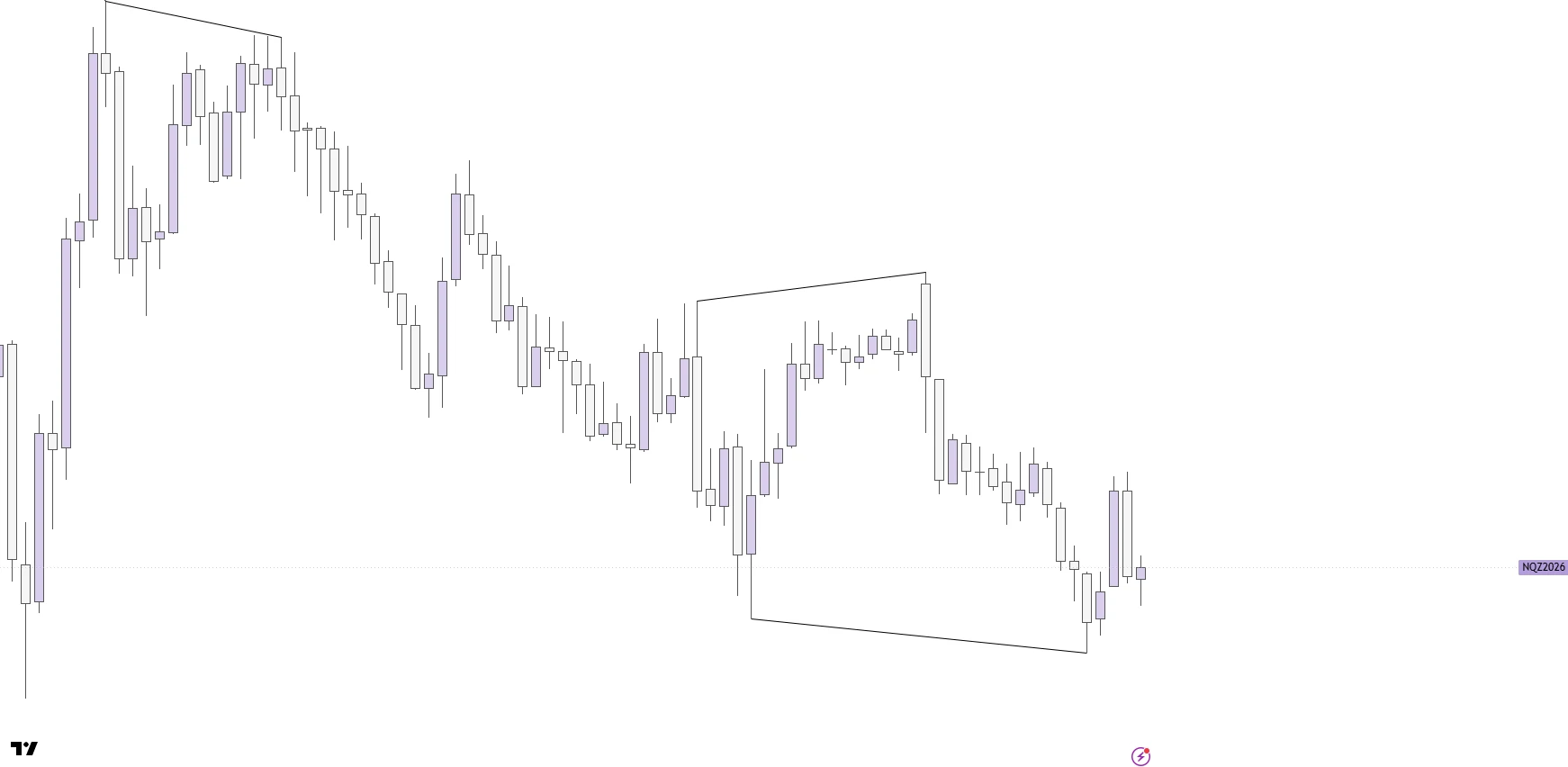
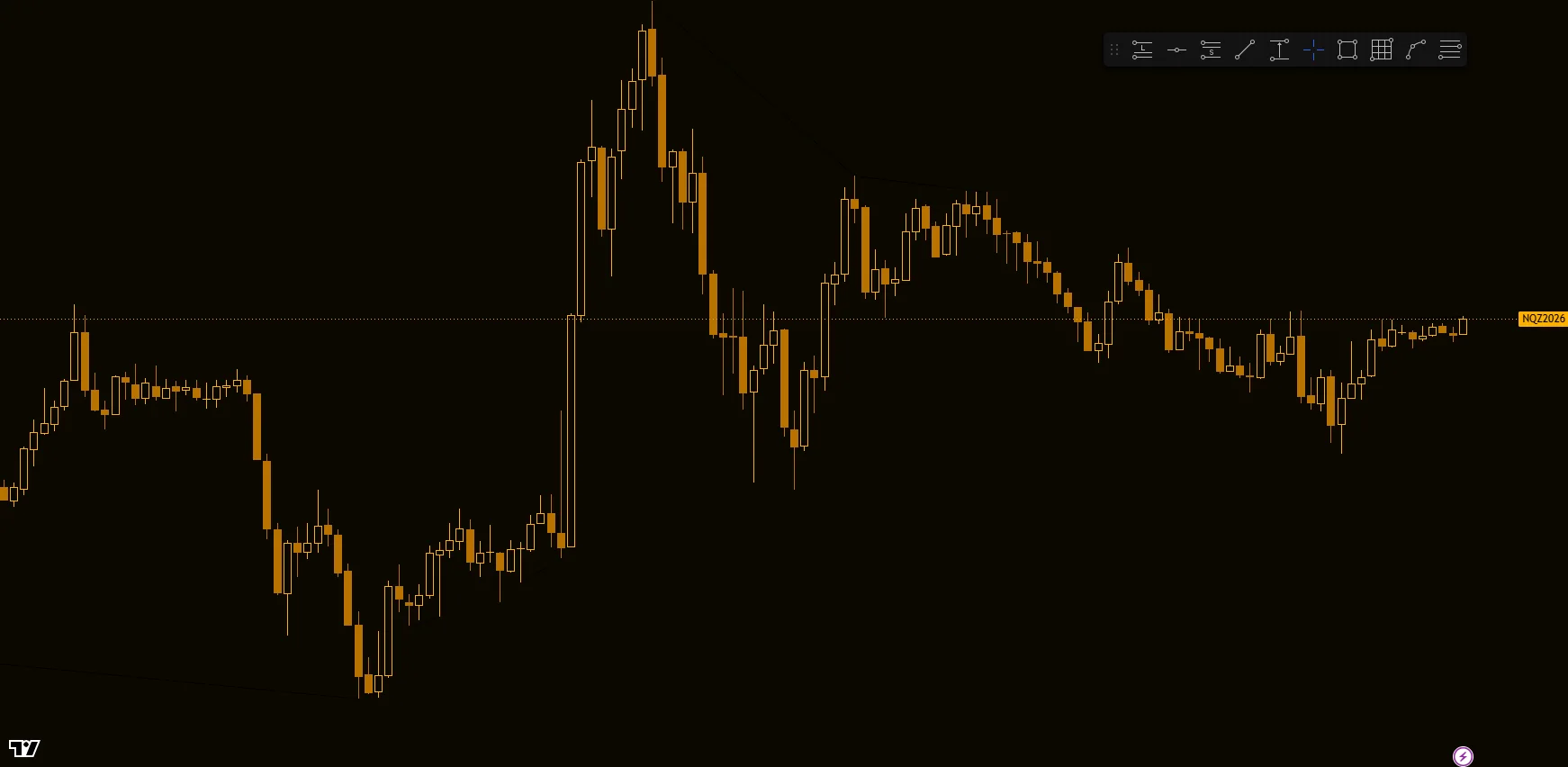
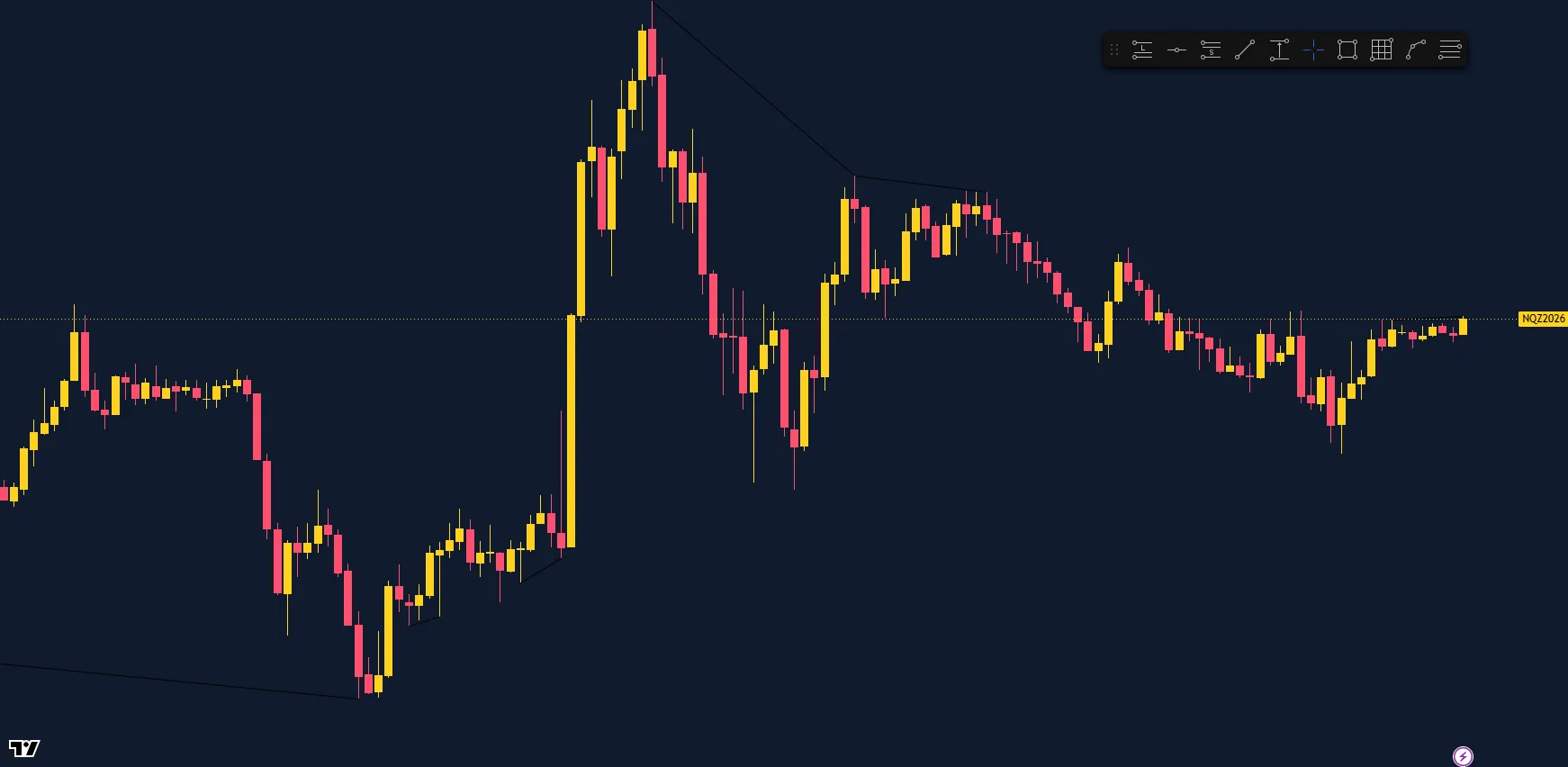
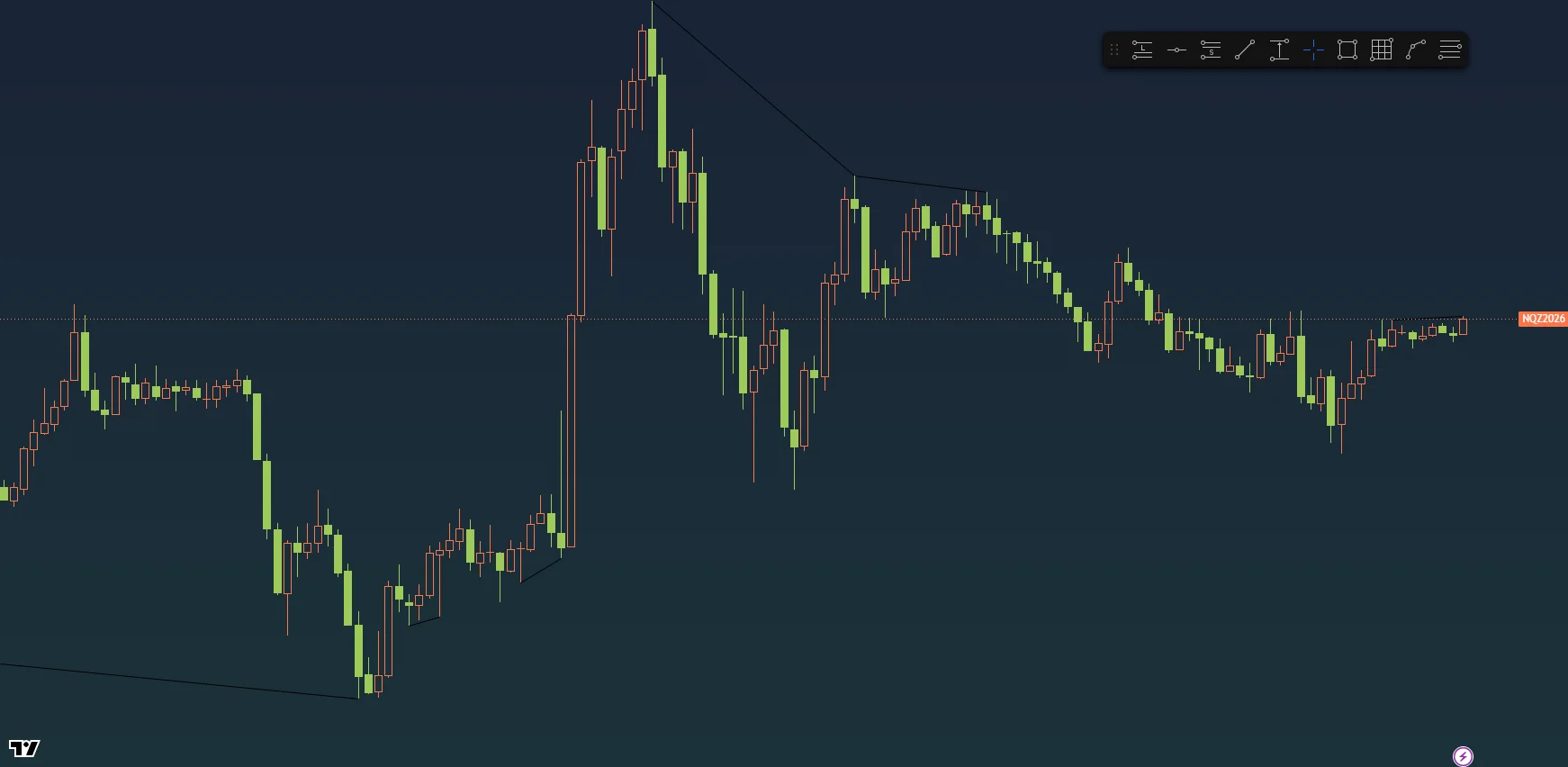
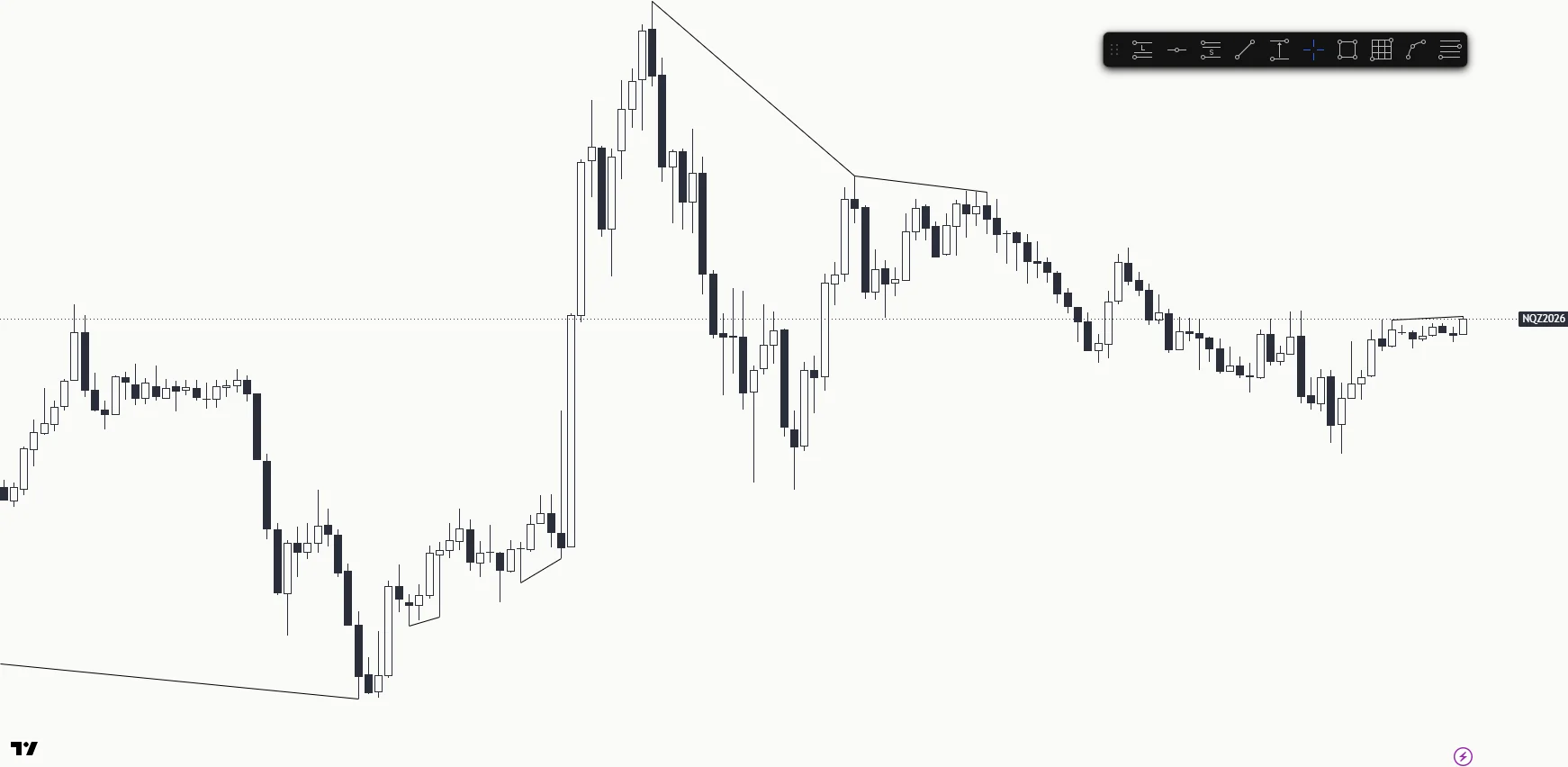
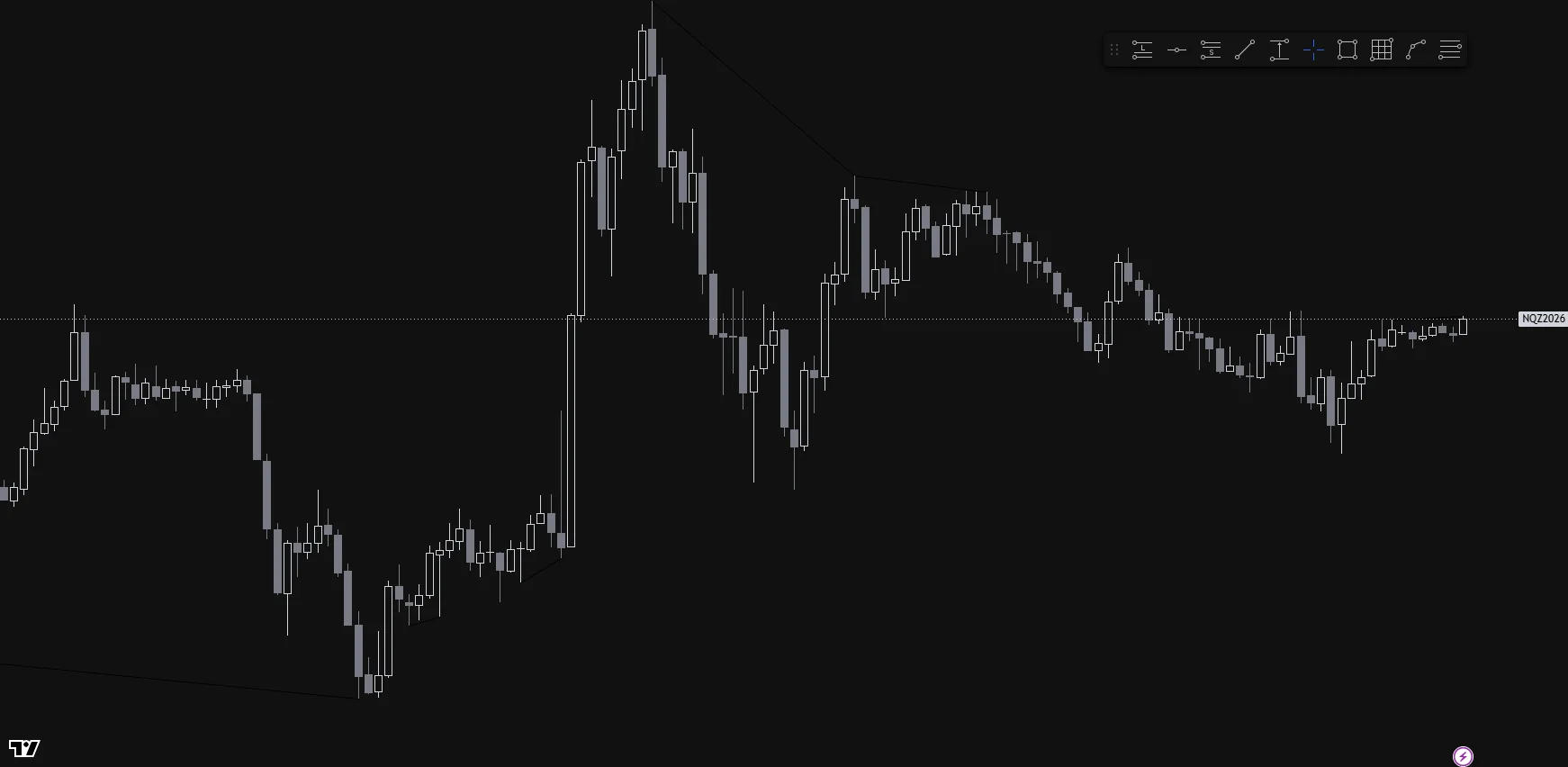
The same NQ chart with and without AstroEngine: a moving wallpaper behind new candle colors.
Same candles, twelve looks
Twelve of the looks in the app. In AstroEngine, hover one to preview it on your chart, click to apply it, and Undo takes it back.
ClassicClose to the platform's default look
Background
#131722
Up
#089981
Down
#F23645
Amber TerminalAmber on black, like an old desk terminal
Background
#0C0800
Up, hollow
#FFB000
Down
#B87200
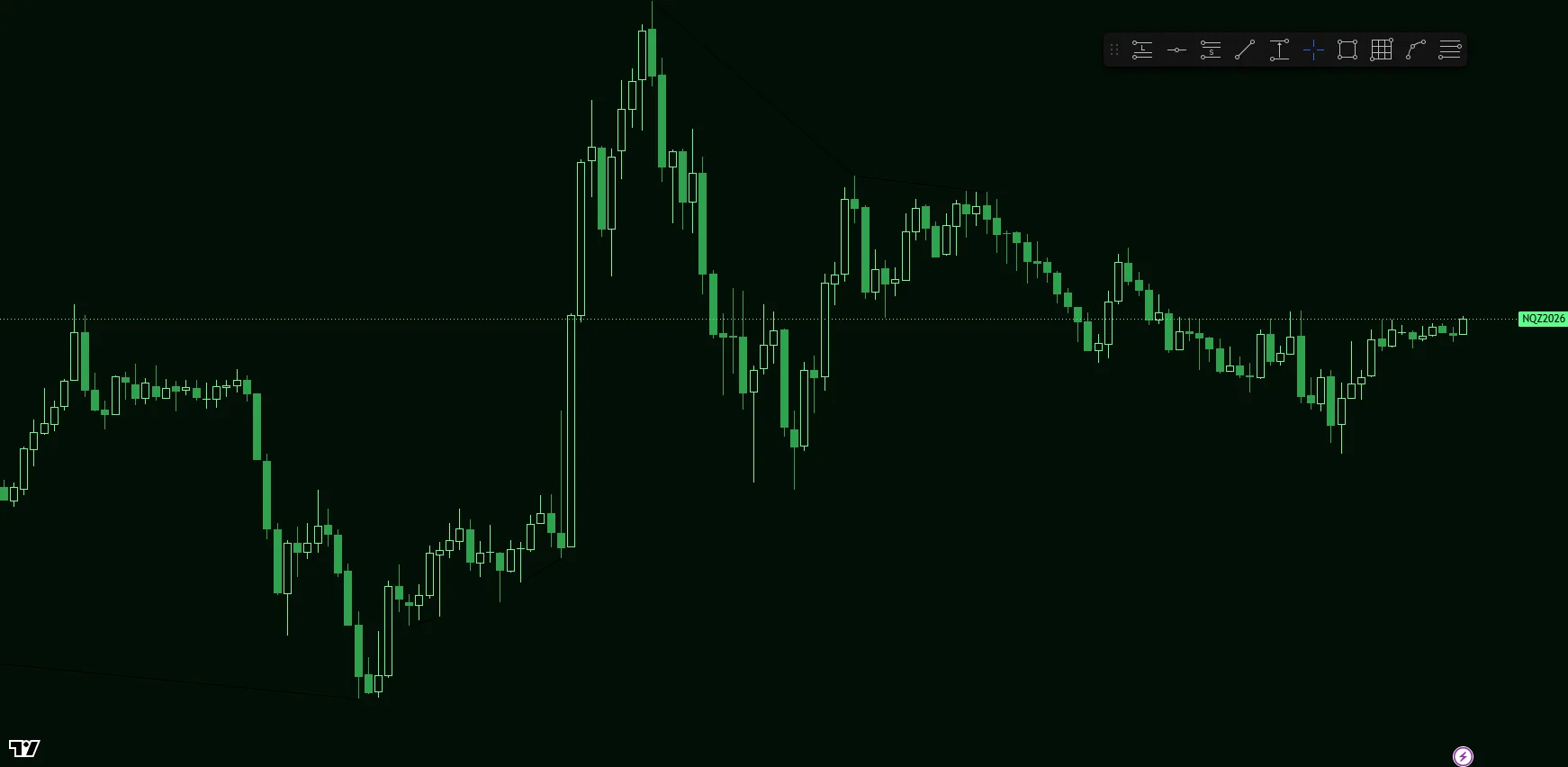
Green Screen DeskGreen on black, like a CRT monitor
Background
#020F06
Up, hollow
#5CFF8A
Down
#2FA34F
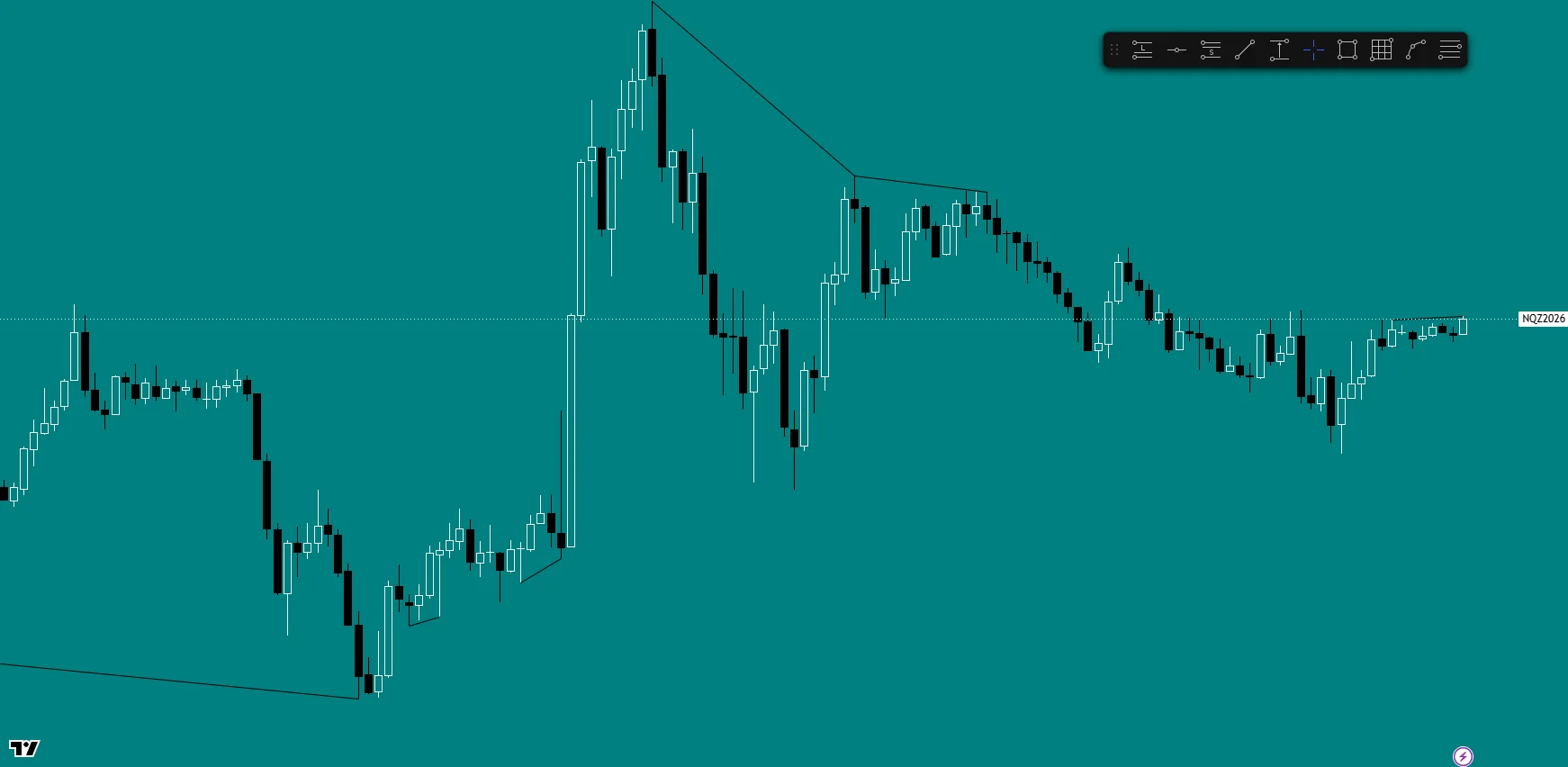
Grey Box '95Teal desktop and grey windows
Background
#008080
Up, hollow
#FFFFFF
Down
#000000
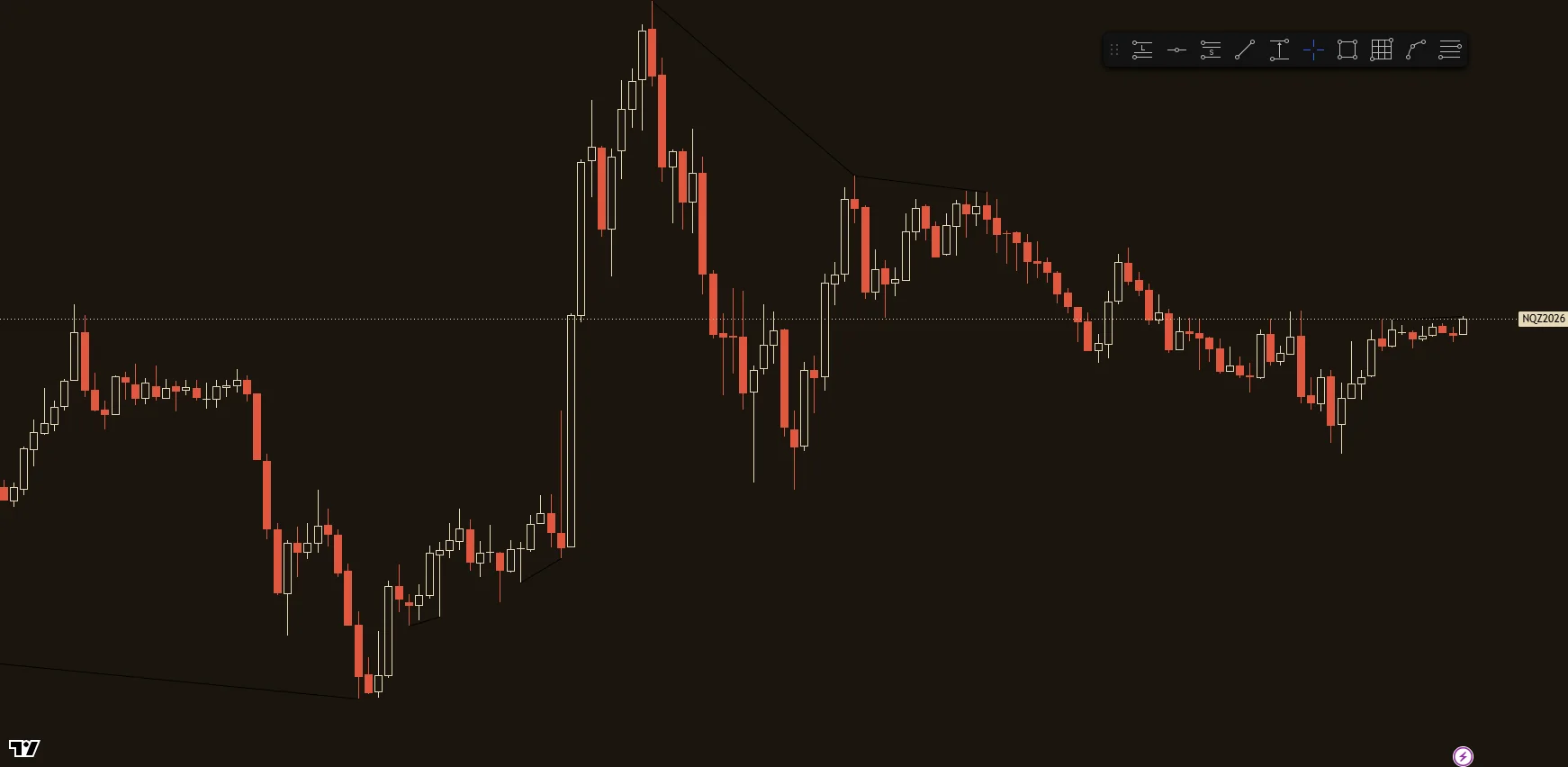
Ticker Tape '29Paper and ink, like a ticker tape
Background
#1B160E
Up, hollow
#E5D8B8
Down
#E0583F
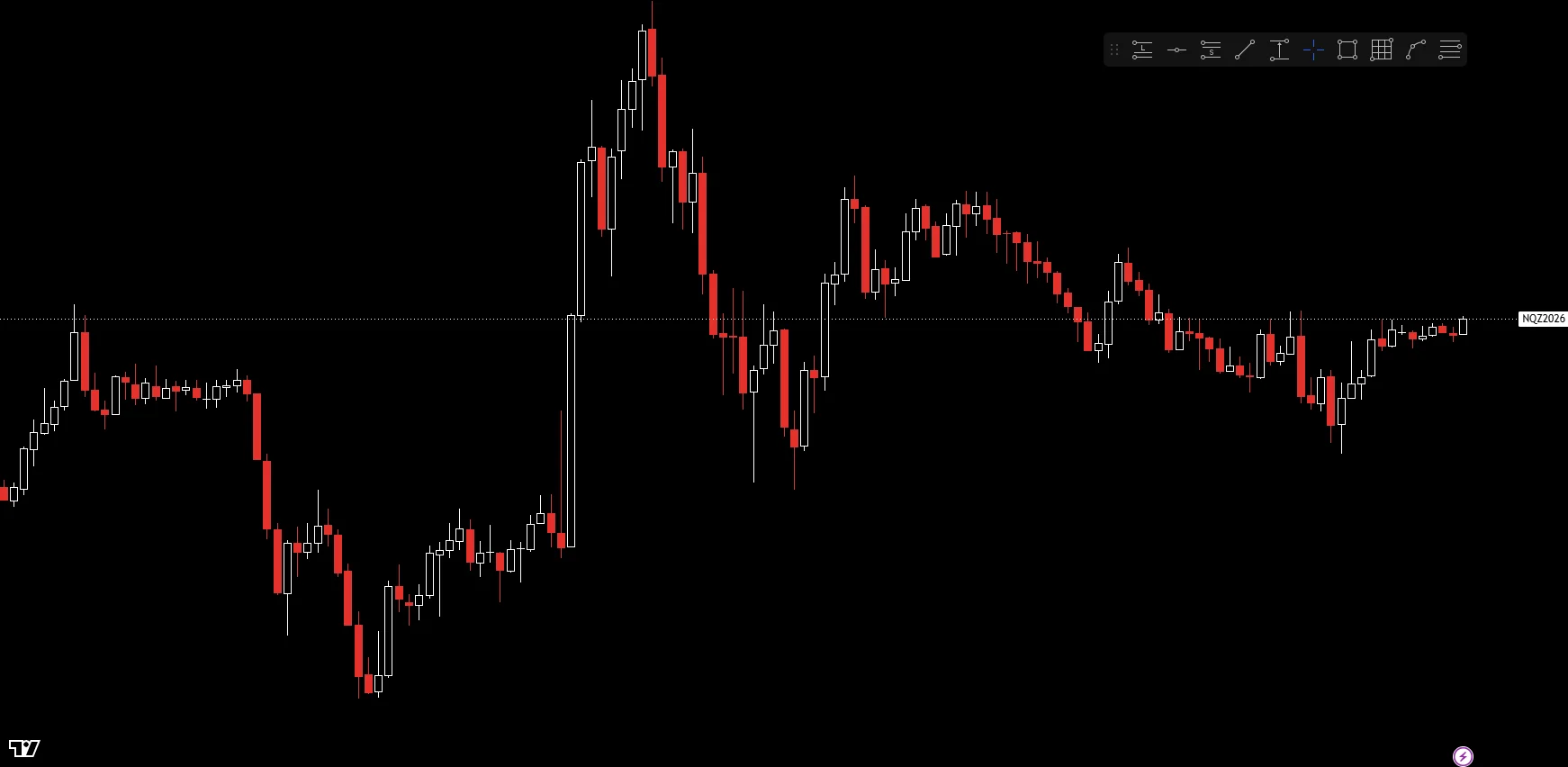
Black Monday '87Black and white with one alarm red
Background
#000000
Up, hollow
#FFFFFF
Down
#E5322D
Pit JacketLoud colors from the trading floor
Background
#101B2D
Up
#FFD21F
Down
#FF4F6D
Rice Exchange 1750Vermilion and indigo in traditional Japanese tones
Background
#192236
Up, hollow
#FF7448
Down
#9CCB5A
PaperBlack on white for bright rooms
Background
#FAFAF7
Up, hollow
#2A2E39
Down
#2A2E39
InkPrice without color, for any color blindness
Background
#121212
Up, hollow
#D1D4DC
Down
#787B86
Night ShiftLow glare for late sessions
Background
#0E0E10
Up, hollow
#4F8F7A
Down
#9C5B5B
StudioA dimmed wallpaper that keeps candles readable
Background
#0B0D12
Up, hollow
#E6E6E6
Down
#9AA0AC
Glass
Glass clears the solid backing behind TradingView's toolbars, so your wallpaper shows through. Icons and labels stay, and the legend keeps a soft tint. With no wallpaper, or one that disagrees with your theme, the bars keep a tint so labels stay readable.
Glass offGlass on
Wallpaper
An image or a video behind your chart. Set dim, blur and opacity yourself, or let auto-dim keep your candles readable.
Wallpaper: NASA photo iss029e012564 (Expedition 29). NASA does not endorse AstroEngine.
Candles
Your up and down colors, then glow, gradient or pulse if you want them. TradingView still draws every candle.
Scripts
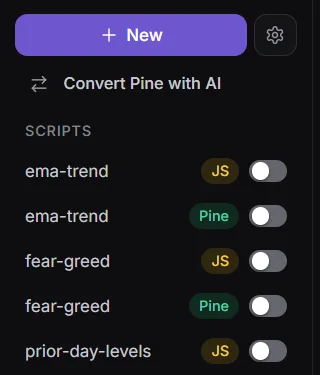
JS and Pine scripts on your chart. Convert Pine with AI copies a conversion prompt for your own AI.
What can touch your orders
The copier and brackets can send, change or cancel orders on your accounts. The rest of AstroEngine does not.
Details
What each part of AstroEngine does and whether it places orders
Tradovate demo accounts for TP/SL on the chart, including NinjaTrader logins on Tradovate's demo server.
Tradovate demo accounts in TradingView for the Copier.
AstroEngine left open while brackets are working.
AstroEngine is not affiliated with TradingView.
AstroEngine Access
$20 a monthA subscription for macOS and Windows. Tax is added where it applies. Cancel anytime in your billing portal. Access runs to the end of the period you paid for.
No. You keep using TradingView Desktop, and TradingView still draws every candle.
Which parts can touch my orders?
The copier and brackets can send, change or cancel orders on your accounts. Quick trade, Flatten all and Sync now on the Copier page also send orders. The rest of AstroEngine does not.
Can I copy to a live account?
No. The copier is for Tradovate demo accounts only. Logins on a live or unknown host never lead and never follow.
Does a NinjaTrader login work with the copier?
Yes, when it is on Tradovate's demo server. The Copier page shows the server TradingView is connected to.
My evals are on Rithmic. Will the copier work?
No. The copier only copies between Tradovate demo accounts in TradingView. Accounts on any other server, Rithmic included, can't be copied.
More questionsDoes my prop firm allow a copier?
Some prop firms ban copiers. Check your firm's rules. That risk is yours.
Can a lockout trap me in a losing trade?
It is built not to. A lock only targets new entries. Your close, flatten and cancel controls stay open, and a block that would sit on one of them is dropped. To reduce part of a position with the order ticket, AstroEngine must see that position, which takes a dashboard account and a Tradovate or NinjaTrader login. Without them the ticket stays blocked, and you can still close the whole position.
Are GEXSuite Options and Orderflow included?
No. They are a separately licensed module.
How do I get the app?
Sign in with your Google account, enter your card at checkout, then download the app from your account.
Why does my computer warn me when I open it?
AstroEngine isn't code-signed yet, so your computer asks you to confirm once.
How much does it cost?
AstroEngine Access is a subscription: $20 a month, with tax added where it applies. Cancel anytime in your billing portal. Access runs to the end of the period you paid for.
How many TradingView accounts does it cover?
A subscription connects to one TradingView account and one computer at a time.
Add the missing tools to your TradingView Desktop.
 AstroEngine